How to Fix the WordPress White Screen of Death: Effective Solutions
White screen means a fatal stopped output – stay methodical
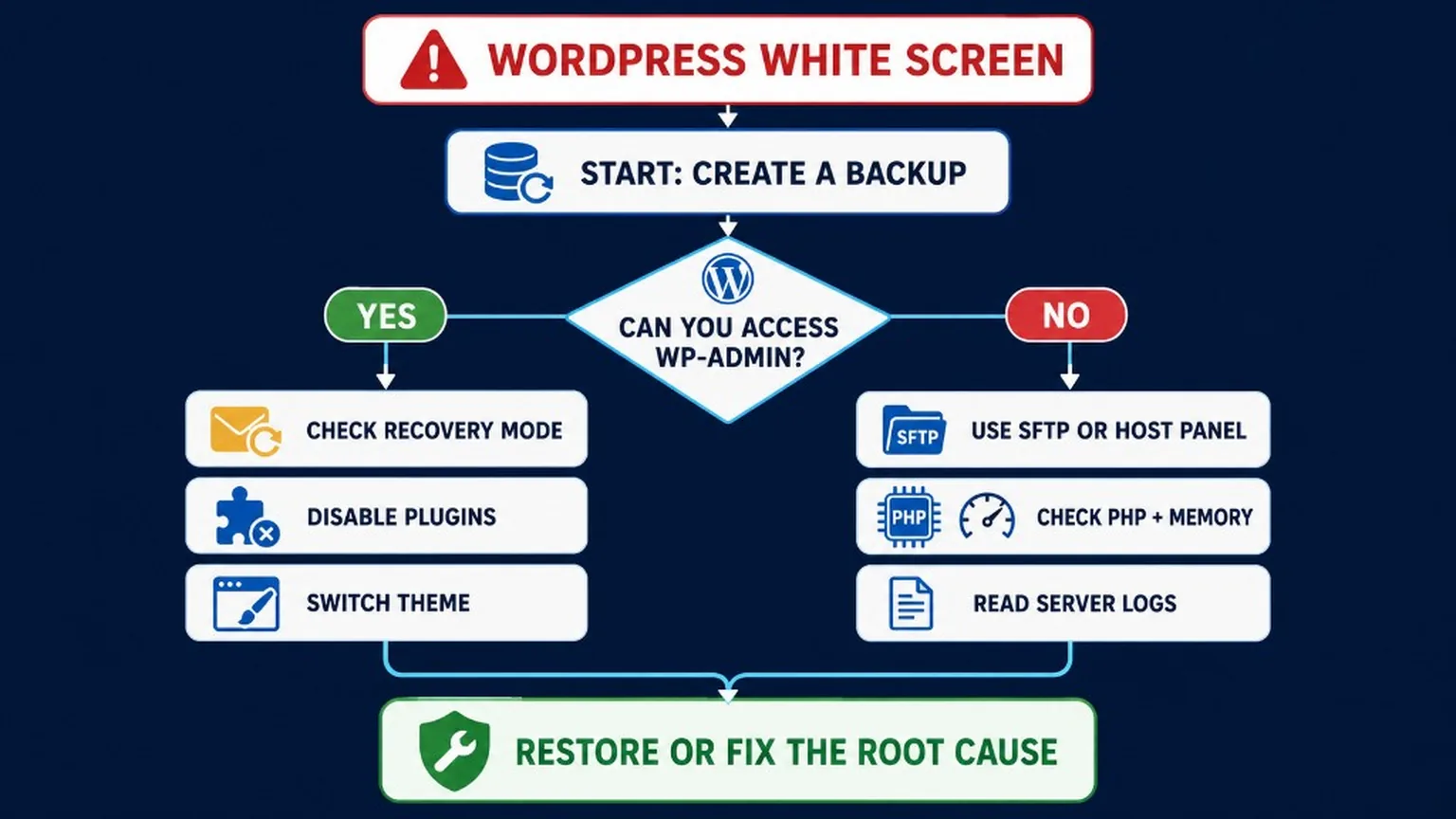
Follow a safe order: backup → hosting status → Recovery Mode → logs → isolate plugin/theme → PHP memory/version → rollback. Skip random “clear all caches” as step one.
The White Screen of Death (WSOD) is usually a PHP fatal, exhausted memory, or a broken deploy that never finishes rendering HTML. Treat it like an incident, not a superstition.
Verified: July 2026 – flow validated for WordPress 7.0.2 and modern PHP 8.x stacks. Deep logging: WordPress debugging guide.
Modern causes (beyond “a plugin”)
WSOD in 2026 often follows PHP upgrades, bad deploys, object cache poisoning, or mu-plugins – not only a random widget.
PHP 8.x incompatibilities after a host upgrade
Fatal error immediately after a plugin/theme/core update
Must-use plugin (mu-plugins) that cannot be toggled in wp-admin
Broken object cache (Redis/Memcached) returning bad serialized data
Failed deploy / half-written files
Out-of-memory (OOM) on heavy admin or product pages
Diagnose the WordPress White Screen of Death step by step, starting with the most common and reversible causes.
Safe recovery order
Each step has a condition and an undo – do not skip backups.
Backup / snapshot – files + database, or host snapshot. Undo: restore if your fix makes it worse.
Hosting status – confirm the server is up, disk not full, TLS OK. Undo: N/A.
Recovery Mode – use the email link WordPress sends after a fatal; disable the reported extension. Undo: re-enable after fix.
Logs – debug.log, PHP-FPM, host error log. Turn on log-only debug if needed: keep display off.
Isolate plugin/theme – rename plugins folder via SFTP/SSH, or switch to a default theme directory name temporarily. Undo: rename back.
PHP memory / version – raise memory carefully (memory snippet) or roll PHP to the last known-good minor on staging first.
Rollback – restore previous plugin/theme package or full backup when isolation is unclear.
Clearing caches helps after you fix the fatal – Cloudflare/page cache can keep serving a blank or stale error page, but cache is rarely the root cause.
Path-specific playbooks
Where the blank screen appears narrows the blast radius.
wp-admin works / frontend blank
Likely theme template, page builder CSS/JS fatal, or frontend-only plugin. Switch theme on staging/admin; disable display plugins; check template for the specific page.
wp-admin blank / frontend works
Likely admin plugin, broken dashboard widget, or exhausted memory in wp-admin. Use Recovery Mode or rename plugins via SFTP; raise memory; check user-specific admin_init fatals.
Single page / product only
Corrupt content, bad shortcode, one template override, or one heavy embed. Open the page in the editor (if possible), strip recent blocks, compare with a working product template.