Verified: July 2026. This guide is an incident-response style procedure for WordPress malware – not a promise of a fixed cleanup time. Scale, logs, backups, and how many sites share the account decide how long recovery takes.
Do not delete evidence first
Wiping files and logs before you understand the vector is how reinfection happens.
Malware often drops multiple backdoors: theme files, mu-plugins, cron jobs, database options, rogue admins, and scheduled tasks on the server. If you delete randomly, you remove IOCs (indicators) that show how the attacker got in – and you may miss a persistence mechanism that brings them back the next night.
- Preserve access logs, malware scanner reports, and a full snapshot before heavy edits.
- Work from a copy when possible; keep the forensic snapshot read-only.
- Document timestamps, changed files, and new users as you go.
Incident response procedure
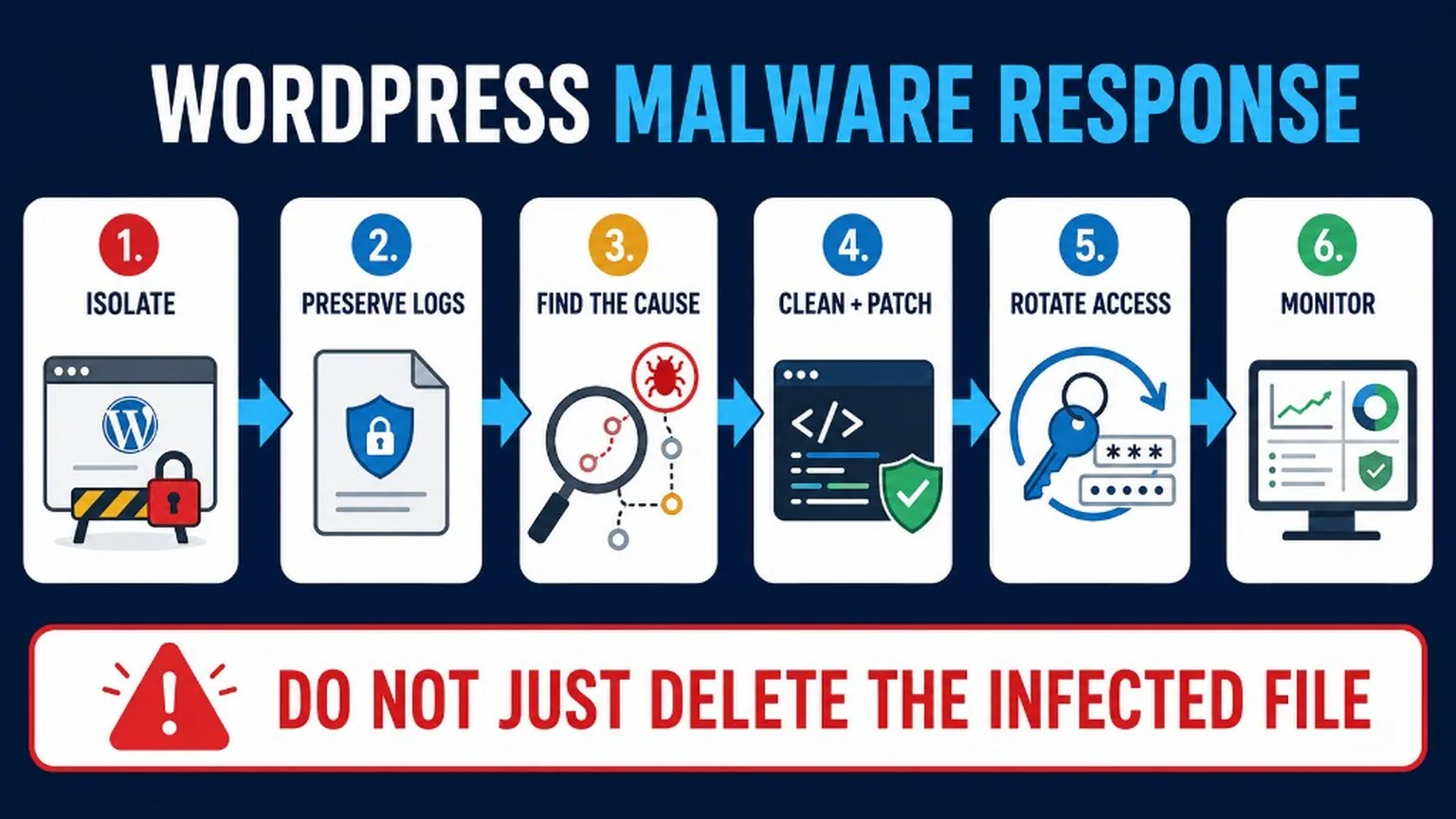
Follow a fixed order: isolate → preserve → find the vector → clean → rotate secrets → update → monitor.
- Isolate – maintenance mode or temporary block of public traffic if the site is actively serving malware or phishing; revoke suspicious sessions; change hosting panel password if takeover is likely.
- Snapshot and preserve logs – full files + database backup labeled “pre-clean forensic”; export host access logs, WP/PHP logs, and firewall events.
- Identify the vector – outdated plugin CVE, weak admin, upload abuse, compromised SFTP, poisoned dependency, or another site on the same account.
- Clean or restore – prefer restore from a known-good backup taken before infection, then patch the hole; otherwise remove malware carefully (below).
- Rotate secrets – all passwords, application passwords, salts, API keys, webhooks, SFTP/SSH keys, CDN tokens.
- Update the stack – core (e.g. WordPress 7.0.2+), plugins, themes, PHP, WAF rules.
- Monitor – integrity scans, Search Console, browser warnings, login anomalies for days or weeks.
Key Takeaways
- Cleaning without finding the entry point is temporary.
- Checksums of core/plugins, mu-plugins,
wp-config.php, crons, users, DB, and uploads all matter. - After cleanup, rotate everything that could be stolen – not only the admin password.
- Cleanup time is not fixed; do not trust FAQ answers that promise “hours” for every case.
Signs of malware
Combine user-visible symptoms with server-side signals.
- Unexpected redirects, spam injected into pages, strange admin users.
- New files under
uploadswith PHP/CGI extensions, odd.htaccessrules. - Unknown mu-plugins, modified
wp-config.php, unfamiliar cron events. - Google Safe Browsing / Search Console security issues, hosting abuse notices.
- Outbound spam from the server, high CPU from unknown PHP processes.
What to inspect (full sweep)
Assume persistence in more than one place until proven otherwise.
- Core checksums – compare WordPress core files to official packages (WP-CLI
core verify-checksumsor equivalent). - Plugin/theme checksums – reinstall from wordpress.org or vendor zips; do not trust local copies.
- mu-plugins – anything in
wp-content/mu-pluginsloads always; review every file. - wp-config.php – unexpected includes, eval, remote URLs, altered DB constants, debug flags left on.
- Crons – WordPress cron events and system crontab / systemd timers for the hosting user.
- Users and roles – new administrators, changed emails, application passwords.
- Database –
wp_optionsautoload spam, injected scripts in posts/widgets, rogue admin inusermeta. - Uploads – executable content, recently modified suspicious files; confirm PHP cannot run there.
- Hosting account – other sites on the same user, mail forwards, unauthorized SSH keys.
- API keys – payment gateways, SMTP, Google/Facebook apps, webhooks in plugins.
Cleaning approaches
Choose restore-from-good-backup when you have one; otherwise rebuild from clean packages.
Preferred: restore then patch
- Restore files + DB from a backup known to be clean (verify date vs first IOC).
- Immediately update core/plugins/themes and close the entry vector.
- Rotate secrets anyway – the backup may predate credential theft.
Details on backup strategy: Backing up and Restoring Your WordPress Site.
Manual / tool-assisted clean
- Put the site in a restricted state; work from SFTP/SSH or a hardened staging clone.
- Replace core and official plugins/themes with fresh copies.
- Quarantine custom theme/plugin code; review diffs before putting it back.
- Clean DB injections with careful SQL or a trusted cleaner – then verify front-end and admin.
- Remove rogue users, reset all passwords, regenerate salts.
Security scanners (e.g. Wordfence, host malware tools) help locate files – they do not replace judgment or secret rotation.
After cleaning – mandatory hardening
A clean filesystem with stolen credentials is still compromised.
- Change all WordPress user passwords; revoke application passwords and sessions.
- Regenerate authentication keys and salts in
wp-config.php. - Rotate SFTP/SSH keys, hosting panel, DNS, CDN, and SMTP credentials.
- Rotate payment and third-party API keys; check for fraudulent charges or webhooks.
- Update WordPress, plugins, themes, PHP; enable a firewall / WAF.
- Enforce 2FA for privileged roles.
- Check Google Search Console security issues and browser warning tools; request review when clean.
- Scan other sites on the same hosting account.
Prevention after recovery
Close the door that was open, then raise the baseline.
- Least privilege, no shared admins, remove unused plugins.
- Off-site backups with restore tests.
- WAF + login protection + integrity monitoring.
- Patch process for security releases (see the broader strategy in Fighting Back Against WordPress Attacks).
Implementation checklist
- Forensic snapshot saved before destructive edits.
- Vector identified (or explicitly marked unknown with extra monitoring).
- Core/plugins/themes checksum-clean; mu-plugins reviewed.
- DB, users, crons, uploads, hosting siblings checked.
- All secrets rotated; WAF and 2FA on; Search Console checked.
Frequently Asked Questions (FAQ)
Practical answers – not a fixed SLA and not a Google rich-result claim.
How quickly can I remove malware from my WordPress site?
It depends. A single webshell with a good backup can be hours. Multi-site reinfection, missing logs, custom code backdoors, or stolen hosting credentials can take days. Anyone promising a universal “quick clean” is selling hope.
What are the first steps when I suspect malware?
Preserve a snapshot and logs, restrict damage if users are being harmed, then investigate vector and scope before mass deletion. Follow the procedure above.
How do I manually remove malware?
Replace core and extensions from trusted packages, hunt persistence (mu-plugins, crons, DB, users, uploads), restore from a clean backup when you have one, then rotate secrets and patch the entry point.
How do I prevent reinfection?
Fix the original hole, rotate credentials, keep updates current, use least privilege + 2FA, keep a WAF, and verify backups restore. Strategy overview: attacks guide.
Is there a checklist for deep cleaning?
Yes – use the inspection and after-cleaning lists in this article. For complex or e-commerce cases, consider WordPress Security and WordPress Repair.
Summary
Treat malware as an incident: preserve evidence, find the door, clean or restore, rotate secrets, then harden and watch. Pair this with solid backups and a firewall so the next attempt fails earlier.