Introduction: why this glossary
This guide collects the most common WordPress-related terms so you can read agency emails, hosting panels, and the admin UI without studying an entire textbook first.
Entries are grouped by topic. Each term includes a short definition, a in practice sentence (what you actually do with it), and a typical misunderstanding to clear up early. Polish equivalents appear where Polish readers see English in the UI.
Part two (technical vocabulary): WordPress glossary of terms – part 2 (advanced)
Editorial references included WordPress.org documentation, Learn WordPress, and established glossaries such as the WordPress.com glossary. Definitions are written for real-world maintenance, not copied verbatim from a single source.
Tip: Bookmark this article and jump to a term with in-browser search (Ctrl+F / Cmd+F) on the H3 heading.
Infrastructure in a nutshell
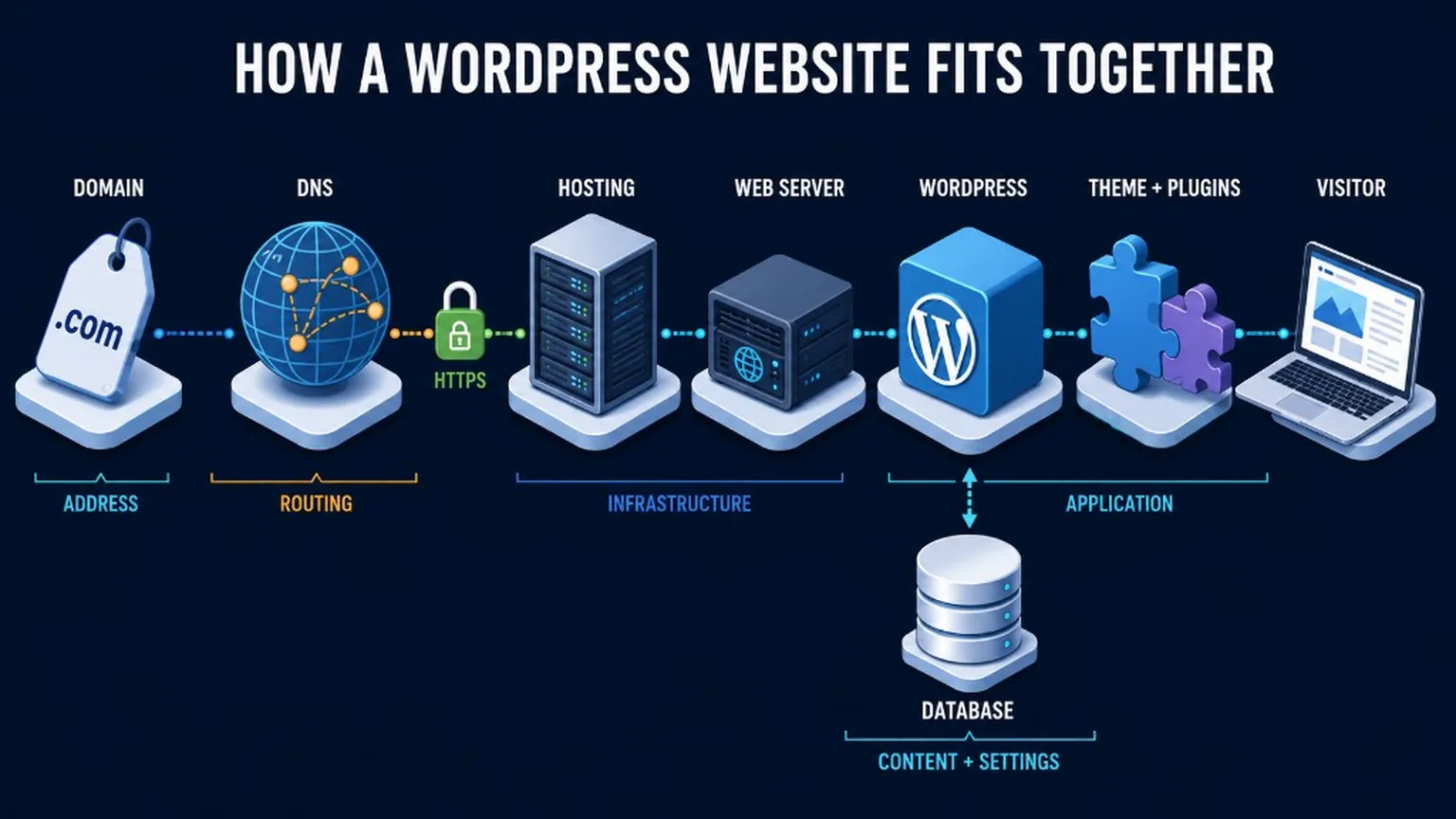
Before WordPress itself, separate three layers: the browser address (domain and DNS), server space (hosting), and encrypted transport (SSL) – only then comes the application.
How the pieces connect:
Domain→DNS→Hosting (server + PHP + DB)→WordPress core→Theme + plugins→Database contentIf any link in that chain is wrong (DNS still pointing at the old host, expired SSL, empty database), the site fails even when “WordPress is installed.”
Hosting
Definition: A service where a company provides a server (or a slice of one) with PHP, a database, and disk space where WordPress runs.
In practice: You pay for hosting, get a control panel (cPanel, Plesk, proprietary UI), and install or upload WordPress there.
Requirements (verified July 2026): WordPress recommends PHP 8.3+, MySQL 8.0+ or MariaDB 10.11+, and HTTPS. Older stacks may still boot but are not a safe production baseline – see WordPress requirements, PHP version guide, and hosting recommendation.
Misunderstanding: Hosting is not the same as a domain – you can register a domain with one registrar and point DNS to another host.
Domain
Definition: The human-readable site address (for example wp-dude.com) typed in the browser bar.
In practice: You register the domain at a registrar; watch renewal dates and contact privacy settings.
Misunderstanding: Buying a domain does not automatically provide file storage – without hosting (or a redirect) the site does not “live” anywhere.
DNS
Definition: The distributed system that maps a domain name to a server IP so the browser knows where to send the request.
In practice: At the registrar you set records (often A or CNAME) pointing to the hosting server or a CDN.
Misunderstanding: DNS changes can take time to propagate – that is normal, not necessarily a broken site.
SSL / HTTPS
Definition: Encrypted communication between browser and server; the address bar shows a lock and https://.
In practice: Certificates are often issued by the host (e.g. Let’s Encrypt); WordPress site URLs in settings should match HTTPS.
Misunderstanding: SSL protects transport – it does not replace WordPress updates or strong passwords.
Server
Definition: A computer (physical or virtual) that stores site files and answers visitor requests.
In practice: In support tickets “the server” often means the same thing as your hosting account with FTP and database access.
Misunderstanding: A “slow WordPress” complaint is often server or configuration related, not “only” the WordPress version in isolation.
FTP and SFTP
Definition: Protocols for transferring files between your computer and the host; SFTP adds encryption.
In practice: You use a client (FileZilla, WinSCP, etc.) when an agency asks for “FTP” or when uploading a theme ZIP manually.
Misunderstanding: FTP is not the WordPress admin – it is filesystem-level access to the server.
Database (usually MySQL / MariaDB)
Definition: A separate layer storing WordPress content and settings (posts, pages, options, users) in relational tables.
In practice: You see it in phpMyAdmin or the host panel as “MySQL”; a full backup includes files and the database.
Misunderstanding: Media files normally live under wp-content/uploads on disk – the database stores metadata, not the binary file as the only copy.
Important: Before DNS or hosting moves, keep a fresh WordPress backup – it saves stress during propagation and rollback.
WordPress as a system
WordPress is a CMS built from core, theme, and plugins – separating those layers helps you avoid mixing “site version” with “theme version”.
CMS (Content Management System)
Definition: Software to create, edit, and publish content without rewriting the whole site in code for every change.
In practice: Editors log into the dashboard, add a post or page, save – the active theme controls public appearance.
Misunderstanding: A CMS does not “design the site” by itself – you still need a theme (or custom front end) and often plugins for specific features.
WordPress installation
Definition: Deploying WordPress files, creating a database, and connecting them (often automated by the host installer).
In practice: After installation you get an administrator account and a login URL under /wp-admin or /wp-login.php.
Misunderstanding: A “clean install” is not necessarily an empty-looking site – starter themes may ship with demo content.
WordPress Core
Definition: The official WordPress codebase maintained by the community – the engine without third-party themes and plugins.
In practice: Core updates appear in the dashboard; apply them for security fixes and features.
Misunderstanding: Editing core files directly is overwritten on the next update – extend via child theme or plugin (see part 2).
Updates
Definition: Replacing core, theme, or plugin files with a newer release from the author.
In practice: Use Dashboard → Updates; larger sites test on a copy first.
Misunderstanding: “All green in the dashboard” does not guarantee compatibility with the latest PHP – see our article on choosing the right PHP version.
wp-admin and the Dashboard
Definition: The password-protected admin area – after login you see the Dashboard (widgets, shortcuts) and the sidebar for content, appearance, plugins, and settings.
In practice: The URL is usually https://example.com/wp-admin/.
Misunderstanding: The dashboard is not the public site visitors see – the front end is served at the domain without /wp-admin.
Key Takeaways:
- Core, themes, and plugins each have their own release cadence.
- The Dashboard is operations HQ, not the final marketing preview (unless you use preview features).
Users and access (basics)
Everyone with admin access has a role – from full administrator down to subscriber – and role choice limits accidental or malicious damage.
User account and login
Definition: A username (or email) plus password that grants access to wp-admin.
In practice: Avoid sharing one administrator login – create individual accounts with least privilege.
Misunderstanding: The public author display name does not have to match the login – do not expose the login in theme markup if you can avoid it.
Roles: Administrator, Editor, Author, Contributor, Subscriber
Definition: Bundled capability sets – Administrator full control; Editor publishes and edits others’ content; Author own posts; Contributor drafts without publish; Subscriber minimal (often profile-only).
In practice: Give copywriters Author or Editor, not Administrator.
Misunderstanding: “I have WordPress access” without a role name – always ask which role; plugins and settings visibility depend on it.
Tip: If someone only uploads media or edits one page, Editor is often enough instead of Administrator – smaller blast radius for mistakes.
Public content
WordPress distinguishes posts (often blog/news) from pages (evergreen), plus categories, tags, permalinks, and media handling.
Post vs page
Definition: A post is usually time-stamped editorial content; a page is stable content (About, Contact, legal).
In practice: “Add a blog post” ≠ “add a menu page” – different menu items in the admin.
Misunderstanding: A page is not “more important technically” than a post – both are database records; usage and templates differ.
Category vs tag
Definition: A category is a broad bucket (often hierarchical); a tag is a finer cross-cutting label.
In practice: Few sensible categories help navigation more than dozens of empty “SEO categories”.
Misunderstanding: Tags and categories are taxonomies – hundreds of empty tag archives can hurt technical SEO; only tag what you use.
Navigation menu
Definition: A list of links (pages, posts, categories, or custom URLs) rendered where the theme defines a menu location.
In practice: Edit under Appearance → Menus (or the Site Editor in block themes – part 2).
Misunderstanding: Adding a page to a menu does not publish it – publishing is a separate action.
Media library
Definition: Repository for images, PDFs, videos, etc., with generated image sizes.
In practice: Optimize before upload – see the short guide to image optimization for WordPress.
Misunderstanding: Deleting a file only in the library can leave broken links in posts that still reference the attachment.
Permalink and slug
Definition: A permalink is the stable URL of a post or page; the slug is the path segment (often hyphenated).
In practice: Configure structure under Settings → Permalinks; changing structure often needs redirects.
Misunderstanding: Changing a slug after Google has indexed the URL without a 301 redirect breaks search consistency.
Draft, preview, publish
Definition: Draft – not public; preview – look before go-live; publish – visible (unless scheduled).
In practice: Large edits stay in draft; editorial workflows may require an Editor to approve.
Misunderstanding: “Saved draft” does not always mean “invisible to Google forever” – previously published URLs may still be remembered.
Important: If you confuse category with menu, remember: a category groups posts in an archive; a menu only shows links – related but not identical.
Themes and appearance (basics)
A theme is a package of templates and styles; widgets and menus are layout pieces the theme exposes in defined areas.
Theme
Definition: A set of PHP/CSS/JS (or block theme files) that shapes the public appearance of content from the database.
In practice: Install from the directory or ZIP; one theme is “active”.
Misunderstanding: A theme does not replace content – switching themes without content planning can look broken.
Theme preview
Definition: See how the site would look with another theme before activating it.
In practice: Always back up before activating an unfamiliar theme on production.
Misunderstanding: Preview may not show every plugin integration – staging is safer.
Responsive design (RWD)
Definition: Layout adapts to screen width (phone, tablet, desktop).
In practice: Test key templates on a phone – affects UX and quality signals.
Misunderstanding: “Responsive theme” does not remove the need for sensible image sizes and plugin count.
Widget
Definition: A small content or feature block in theme areas (footer, sidebar) – in classic themes under Appearance → Widgets.
In practice: Block themes often replace legacy widgets with blocks in templates.
Misunderstanding: Widget ≠ plugin – a widget is usually front-end UI; a plugin extends the whole system.
Navigation menu (theme context)
Definition: Themes register menu locations (e.g. Primary, Footer).
In practice: If a menu “does not show”, you often forgot to assign the created menu to a location.
Misunderstanding: An empty menu slot in preview rarely means “WordPress is broken” – usually missing assignment or missing location in the theme.
Customizer
Definition: Live preview panel for some site and theme options (logo, colors, basic settings).
In practice: Classic themes: Appearance → Customize; block themes move parts to the Site Editor (part 2).
Misunderstanding: Options visible in the Customizer do not automatically exist in the Site Editor – depends on the theme.
Tip: For safer customization, read our WordPress child theme guide – customize without editing parent files (technical detail in part 2).
Plugins (basics)
Plugins add features; fewer plugins doing overlapping jobs means simpler maintenance and fewer conflicts.
Plugin
Definition: Code package under wp-content/plugins/ extending WordPress.
In practice: Install from Plugins → Add New or upload ZIP; then activate.
Misunderstanding: Installed but deactivated plugins still occupy disk and may still receive updates – not “nonexistent” code.
Directory install vs ZIP upload
Definition: WordPress.org directory hosts reviewed free plugins; ZIP is common for premium or custom plugins.
In practice: ZIP upload: Plugins → Add New → Upload Plugin.
Misunderstanding: Wrong ZIP structure (nested folder issues) causes “invalid plugin” errors.
Activate / deactivate
Definition: Activation loads the plugin; deactivation stops hooks but often leaves data (author-dependent).
In practice: First troubleshooting step after a crash: deactivate the last installed plugin.
Misunderstanding: Deleting plugin files via FTP without deactivating can throw PHP errors – prefer deactivating from the admin.
Plugin conflict (user-level meaning)
Definition: Two plugins (or plugin and theme) fight over the same behavior and cause errors or odd UI.
In practice: Disable one plugin at a time; keep a “recently changed” list.
Misunderstanding: “Hosting fault” is sometimes actually two popular SEO or cache plugins conflicting.
Important: Contact forms are a common spam vector – before stacking plugins, see best practices for securing WordPress contact forms.
The block editor (Gutenberg, user level)
The default editor is block-based: you assemble content from blocks, which helps consistent layout and responsiveness.
Block
Definition: The smallest meaningful content unit (paragraph, image, button) with its own sidebar settings.
In practice: Duplicate and reorder blocks instead of pasting raw Word HTML blindly.
Misunderstanding: The “Classic” block is still a block – it embeds the legacy editor inside Gutenberg.
Pattern
Definition: A pre-built group of blocks (e.g. hero + button) inserted in one click, then edited – synced or unsynced depending on how it was registered.
In practice: Agencies ship custom patterns for repeatable landing sections; block themes may also ship pattern catalogs in the Site Editor.
Misunderstanding: A pattern is not automatically “the legal template of the whole site” – full-page templates are a separate layer in block themes.
Headings H2–H4
Definition: Heading blocks structure the document for readers and search engines.
In practice: One H1 usually comes from the post/page title; inside content start at H2, then H3.
Misunderstanding: Skipping from H2 to H4 “for looks” hurts semantics and accessibility.
Embed (oEmbed)
Definition: Pasting a YouTube (etc.) URL so WordPress renders the player/card automatically.
In practice: Use the Embed block or a compatible paragraph flow depending on version.
Misunderstanding: Embeds load third-party scripts – they can affect performance (see Performance optimization content on the blog).
Classic Editor (historical context)
Definition: The older single-field editor; still seen on legacy sites or when the Classic Editor plugin is active.
In practice: One big content box usually means classic mode.
Misunderstanding: “Gutenberg is harder” is often habit – not an automatic downgrade in technology.
Key Takeaways:
- Treat blocks like LEGO for repeatable layouts.
- Patterns speed editorial work but need maintenance when branding changes.
Site Editor (basics)
Definition: In block themes, the Site Editor (Appearance → Editor) edits templates, template parts, and global styles for the whole site.
In practice: Headers, footers, and archive layouts live here instead of only in classic PHP theme files or the Customizer.
Misunderstanding: Classic themes may still use the Customizer and widgets – the Site Editor is not identical on every install.
Block theme (basics)
Definition: A theme built around blocks and usually theme.json, designed for the Site Editor.
In practice: Changing global fonts/colors often happens in styles / theme.json, not only in Additional CSS.
Misunderstanding: Switching from a classic theme to a block theme is a redesign project, not a one-click skin swap.
Plugin vs snippet vs custom plugin
Definition: A plugin is a packaged feature set; a snippet is a small code fragment (often in a snippets plugin or child theme); a custom plugin is your own maintained plugin for business logic.
In practice: Prefer a small custom plugin for lasting site-specific behavior so it survives theme switches – see custom WordPress tools.
Misunderstanding: Pasting everything into functions.php of the parent theme is how updates wipe your work.
SEO and visibility (glossary only)
These terms decode SEO reports and plugin labels – deeper procedures live in dedicated SEO articles under SEO for WordPress and Tips and tools.
Indexing
Definition: Search engines discover, process, and may show your URLs in results.
In practice: Under Settings → Reading ensure production is not set to discourage indexing unintentionally.
Misunderstanding: “Site is online” ≠ “Google has indexed it yet” – separate timelines.
robots.txt
Definition: A text file with suggestions for crawlers (including sitemap location); not a human access control.
In practice: See robots.txt best practices for WordPress.
Misunderstanding: Disallow in robots does not hide secrets from attackers – not an authorization mechanism.
XML sitemap
Definition: A machine-readable list of URLs to help discovery.
In practice: Core WordPress includes a sitemap; SEO plugins often extend it.
Misunderstanding: A sitemap does not force indexing of every URL – it is a hint.
Meta title and meta description
Definition: Fields (often via SEO plugins) suggesting title and snippet text in Google results.
In practice: Write for humans; avoid duplicate descriptions across hundreds of thin URLs.
Misunderstanding: Google may rewrite titles/snippets – meta is a recommendation, not a guarantee.
noindex / nofollow (conceptual)
Definition: noindex asks not to show a URL in search results; nofollow signals link treatment (context-dependent by engine).
In practice: SEO plugins help noindex thin archives or staging-like URLs.
Misunderstanding: noindex does not replace authentication for confidential data.
Tip: If technical SEO is new, start with XML sitemaps and robots.txt – they appear constantly in SEO email threads.
Everyday acronyms
Shorthand from email and docs – business meaning without algorithm deep dives.
URL
Definition: Full web address of a resource, e.g. https://wp-dude.com/how-to-fix-the-404-error-in-wordpress-a-beginners-guide/.
In practice: “Send me the URL” means “send the link from the address bar.”
Misunderstanding: Case sensitivity in paths can bite on some stacks – keep internal linking consistent.
SEO and UX
Definition: SEO – visibility work in search; UX – user experience quality (navigation, readability, perceived speed).
In practice: Good UX often supports SEO – e.g. breadcrumbs for SEO and UX.
Misunderstanding: “We will do SEO” without technical fixes and content is often empty marketing language.
CDN (Content Delivery Network)
Definition: Edge network serving static assets (images, CSS, JS) closer to the user.
In practice: Enable at host or via plugin/WAF; helps latency and origin load, not a substitute for a heavy theme.
Misunderstanding: CDN is not “a second PHP host by default” – simplified: distribution of static assets (edge HTML caching is a separate configuration topic).
Backup
Definition: Copy of files and database to restore after failure or mistakes.
In practice: Follow backing up and restoring your WordPress site.
Misunderstanding: A backup without a tested restore is hope, not a procedure – test at least annually on a copy.
Important: Bold key acronyms like SEO or CDN on first meaningful mention – consistent with WP-Dude editorial style for tools and key terms.
Summary
After part one you can separate hosting/domain/DNS/SSL, WordPress core and the dashboard, content types, themes, plugins, the block editor, and basic SEO jargon – without diving into server code.
For WP-Cron, REST API, child themes in depth, headless, or object cache, continue to part 2 of the glossary.
Need help shipping changes safely? Contact us – we can align hosting, backups, and update workflows with your site.
Tip: Keep a printed or PDF copy of the short index for faster lookups than scrolling the full article.
Index (part 1)
- Hosting · Domain · DNS · SSL / HTTPS
- Core · wp-admin / Dashboard
- Post vs page · Category vs tag · Permalink / slug
- Theme · Widget · Customizer
- Plugin · Plugin conflict
- Block · Pattern · Site Editor · Block theme · Plugin vs snippet
- robots.txt · XML sitemap
Tip: Extend the index with new
idattributes on H3 headings as you grow the glossary – lightweight TOC without a separate plugin.